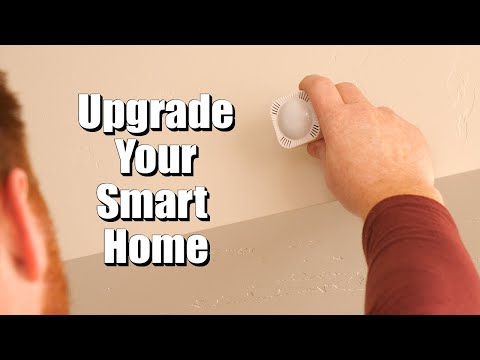
SmartThings is useful for households that want to combine products from several manufacturers under one control system. Install the SmartThings app on Android or iPhone, sign in with a Samsung Account, and create a location for the home. Add rooms before pairing devices so new accessories can be organized immediately.
Connect the Aeotec Smart Home Hub or another supported SmartThings hub to power and Ethernet where available. Add it from the app and allow all updates to finish. Place the hub away from large metal objects, dense electrical equipment, and the edge of the house. Zigbee, Z-Wave, Thread, Matter, and Wi-Fi devices use different connection paths, so confirm each product’s exact compatibility rather than relying only on a generic Works with SmartThings claim.
Pair one device at a time. Start the add-device process in SmartThings before putting the accessory into pairing mode. Name the device, assign its room, and test every exposed control. For a sensor, verify open, closed, motion, temperature, or battery states. For a lock or camera, review permissions and confirm that only trusted members have access.
Create routines with clear names and limited responsibilities. An Away routine might turn off selected lights and notify if a door opens, while an Evening routine can adjust lighting without controlling security devices. Avoid building several routines that issue conflicting commands at the same time. Check the history log when a device behaves unexpectedly.
Back up important setup codes and document which radio technology each device uses. This makes future hub replacement and troubleshooting easier. Tech With Brett’s beginner guide explains SmartThings and the Aeotec hub in depth, including device categories, organization, and the practical decisions involved in growing a multi-brand home.
Source: www.youtube.com
Conversation
0 commentsNo comments yet. Start a useful conversation.